DTNR Race Tool
Benutzerhandbuch · v1.1.1User Manual · v1.1.1
1 Einführung
Das DTNR Race Tool ist die Rennverwaltungskomponente des Daymar Tactical Navigation & Racing Projekts. Es dient der Organisation und Durchführung von Rennen auf dem Mond Daymar im Spiel Star Citizen.
Das Race Tool richtet sich an Rennleiter (Race Director), die Rennen planen, starten und überwachen. Es bietet eine Live-Karte mit Echtzeit-Positionen aller teilnehmenden Teams, umfangreiche Renndaten und eine vollständige Kommunikationsbrücke zu allen verbundenen Nav Tools.
Was kann das Race Tool?
- Rennen erstellen, eröffnen und starten (Phase: Created → Open → Starting → Started → Finished)
- Live-Tracking aller Teams auf einer interaktiven Daymar-Karte
- Transponder-Daten empfangen und visualisieren
- Automatische Checkpoint- und Zieldurchgangserkennung
- Echtzeit-Standings mit Geschwindigkeitsdiagrammen pro Division (Bike, Buggy, Truck)
- Analysis-Modus zum Laden und Abspielen vergangener Rennen
- Rennstrecke und Update-Intervall automatisch an alle Teilnehmer verteilen
- Rennarchive vom Server oder lokal laden und auswerten
- Ranglisten je Division (P1–P10) direkt auf der Karte
- Anmeldung mit DTNR-Konto und Lizenzverwaltung direkt in der Anwendung
- Benutzeroberfläche wahlweise auf Deutsch oder Englisch
1 Introduction
The DTNR Race Tool is the race management component of the Daymar Tactical Navigation & Racing project. It is used to organise and run races on the moon Daymar in the game Star Citizen.
The Race Tool is designed for race directors who plan, start, and supervise races. It provides a live map with real-time positions of all participating teams, comprehensive race data, and a full communication bridge to every connected Nav Tool.
What can the Race Tool do?
- Create, open, and start races (phases: Created → Open → Starting → Started → Finished)
- Live tracking of all teams on an interactive Daymar map
- Receive and visualise transponder data
- Automatic checkpoint and finish-line detection
- Real-time standings with speed charts per division (Bike, Buggy, Truck)
- Analysis mode for loading and replaying past races
- Automatically distribute the race route and update interval to all participants
- Load and evaluate race archives from the server or locally
- Per-division rankings (P1–P10) directly on the map
- Sign-in with a DTNR account and license management inside the application
- User interface in English or German
2 Installation und erster Start
Installation
Das Race Tool kann zusammen mit dem Nav Tool über den DTNR Installer installiert werden. Es ist eine Komponente, die im Installer separat ausgewählt werden kann. Nach der Installation finden Sie es im Startmenü unter DTNR Race Tool.
Erster Start
Der Installer legt unter C:\Program Files\DTNR-Tool folgende Verzeichnisse an:
| Verzeichnis | Inhalt |
|---|---|
| Race-Tool\ | DTNR-RaceTool.exe |
| Race-Tool\docs\ | Benutzerhandbuch (PDF) |
| Race-Tool\races\ | Lokale Renndateien (.race) |
| Race-Tool\routes\ | Offizielle Rennstrecken (.route) |
| Race-Tool\resources\ | Splash-Screen, Icons |
Einstellungen, Protokolle und Lizenzdaten liegen unter %LOCALAPPDATA%\DTNR-Tool (gemeinsam mit dem Nav Tool).
Beim Start prüft das Race Tool Ihre Lizenz. Sind Sie noch nicht angemeldet, öffnet sich automatisch der Anmeldedialog (siehe Abschnitt Anmeldung und Lizenz). Die Oberfläche startet auf Englisch; über das Menü Language bzw. Sprache stellen Sie auf Deutsch um.
Systemvoraussetzungen
- Windows 10 oder 11 (64 Bit)
- Bildschirmauflösung: mindestens 1920×1080
- Internetverbindung zum Race-Server sowie für Anmeldung und Lizenzprüfung (offline bis zu 48 h nutzbar)
2 Installation and First Launch
Installation
The Race Tool can be installed together with the Nav Tool via the DTNR Installer. It is a separate component that can be selected during installation. After installation you find it in the Start Menu as DTNR Race Tool.
First Launch
The installer creates the following directories under C:\Program Files\DTNR-Tool:
| Directory | Contents |
|---|---|
| Race-Tool\ | DTNR-RaceTool.exe |
| Race-Tool\docs\ | User manual (PDF) |
| Race-Tool\races\ | Local race files (.race) |
| Race-Tool\routes\ | Official race routes (.route) |
| Race-Tool\resources\ | Splash screen, icons |
Settings, logs and license data are stored under %LOCALAPPDATA%\DTNR-Tool (shared with the Nav Tool).
At startup the Race Tool checks your license. If you are not signed in yet, the login dialog opens automatically (see section Sign-in and License). The user interface starts in English; switch to German via the Language menu.
System Requirements
- Windows 10 or 11 (64-bit)
- Screen resolution: at least 1920×1080
- Internet connection to the race server and for sign-in and license check (usable offline for up to 48 h)
3 Anmeldung und Lizenz
Für die Nutzung des Race Tools benötigen Sie ein DTNR-Konto (Registrierung auf dtnr.space) und eine Lizenz, die an Ihren Rechner gebunden ist. Anmeldung und Lizenz sind getrennte Schritte: Die Anmeldung weist Sie aus, die Lizenz schaltet das Tool frei.
Anmelden
- Klicken Sie im Profilbereich auf Anmelden oder wählen Sie Lizenz → Anmelden / Lizenz…
- Geben Sie E-Mail-Adresse und Passwort Ihres DTNR-Kontos ein
- Der Profilbereich zeigt danach Ihren Namen, Ihr Avatarbild, ein eventuelles Supporter-Badge und den Lizenzstatus
Ist nach der Anmeldung noch keine gültige Lizenz vorhanden, öffnet sich automatisch der Lizenzdialog.
Lizenzstatus
| Status | Bedeutung |
|---|---|
| Lizenz gültig | Alle Funktionen sind freigeschaltet. Der Status wird beim Start online bestätigt. |
| Testphase | Ohne Lizenz läuft einmalig pro Rechner eine Testphase von 48 Stunden. Ein Hinweis zeigt die Restzeit. |
| Offline-Modus | Ist der Lizenzserver nicht erreichbar, bleibt eine bereits bestätigte Lizenz noch 48 Stunden gültig. |
| Keine Lizenz | Die Oberfläche ist gesperrt; nur das Menü Lizenz ist verfügbar. |
Lizenz anfordern und aktivieren
- Lizenz → Anmelden / Lizenz… öffnen. Der Dialog zeigt Ihr Konto, die Hardware-ID dieses Rechners (mit Kopieren-Button) und den aktuellen Lizenzstatus.
- Auf Lizenz anfordern klicken. Die Anfrage geht mit Ihren Kontodaten und der Hardware-ID an das DTNR-Team.
- Den erhaltenen Lizenzschlüssel im Bereich Lizenzschlüssel eingeben einfügen und auf Aktivieren klicken.
- Nach dem Schließen des Dialogs wird die Oberfläche automatisch freigeschaltet.
Abmelden
Über Abmelden im Profilbereich melden Sie sich ab. Dabei wird die lokale Lizenz deaktiviert und die Oberfläche gesperrt, bis Sie sich erneut anmelden und die Lizenz aktivieren.
3 Sign-in and License
To use the Race Tool you need a DTNR account (register at dtnr.space) and a license bound to your computer. Sign-in and license are separate steps: signing in identifies you, the license unlocks the tool.
Signing In
- Click Login in the profile area or choose License → Login / License…
- Enter the e-mail address and password of your DTNR account
- The profile area then shows your name, avatar, a supporter badge (if any) and the license status
If no valid license exists after signing in, the license dialog opens automatically.
License Status
| Status | Meaning |
|---|---|
| License valid | All features are unlocked. The status is confirmed online at startup. |
| Trial | Without a license, a one-time 48-hour trial runs per computer. A notice shows the remaining time. |
| Offline mode | If the license server cannot be reached, a previously confirmed license stays valid for 48 hours. |
| No license | The user interface is locked; only the License menu is available. |
Requesting and Activating a License
- Open License → Login / License…. The dialog shows your account, the hardware ID of this computer (with a Copy button) and the current license status.
- Click Request License. The request is sent to the DTNR team together with your account data and hardware ID.
- Paste the license key you receive into Enter License Key and click Activate.
- After closing the dialog, the user interface is unlocked automatically.
Signing Out
Use Logout in the profile area to sign out. This deactivates the local license and locks the user interface until you sign in and activate the license again.
4 Benutzeroberfläche im Überblick
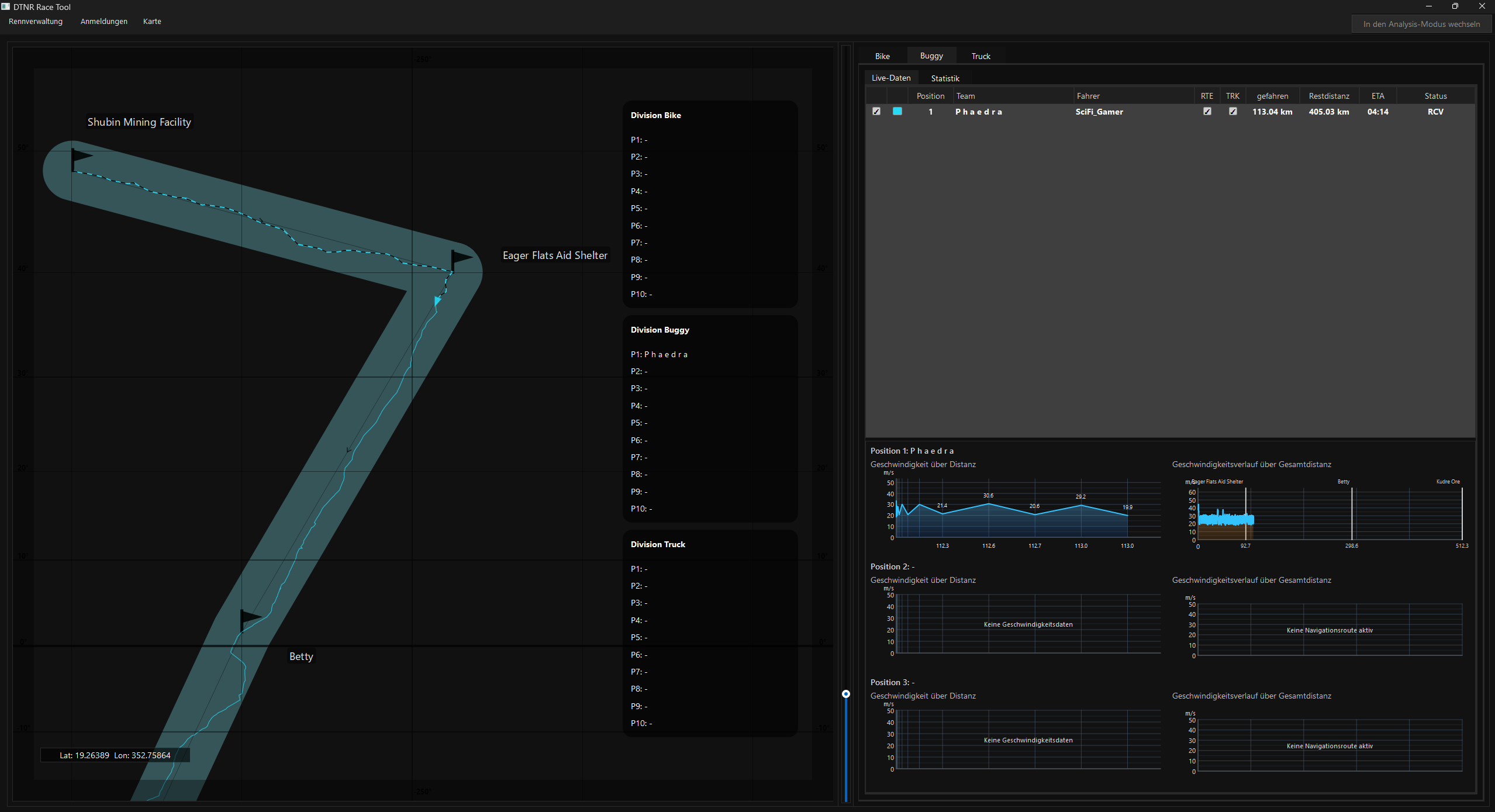
Die Oberfläche ist in drei Hauptbereiche unterteilt:
| Bereich | Position | Funktion |
|---|---|---|
| Kartenansicht | Links (großer Bereich) | Live-Karte mit Team-Positionen und Rennstrecke |
| Zoom-Steuerung | Mitte (schmaler Streifen) | Vertikaler Schieberegler für Zoom |
| Seitenpanel | Rechts | Tabs für Rennsteuerung und -daten |
Die Tabs im Seitenpanel
Das Seitenpanel ist nach Fahrzeug-Divisionen organisiert:
| Tab | Inhalt |
|---|---|
| Bike | Live-Daten und Statistik für die Division Bike |
| Buggy | Live-Daten und Statistik für die Division Buggy. Enthält zusätzlich das Verbindungspanel (Server-Auswahl, Connect/Disconnect, Team-Feed-Log) |
| Truck | Live-Daten und Statistik für die Division Truck |
Jeder Divisions-Tab enthält zwei Unter-Tabs:
- Live-Daten – Aktuelle Standings-Tabelle und Geschwindigkeitsdiagramme der Top 3
- Statistik – Top-10-Tabelle mit Restdistanz, ETA, Durchschnittsgeschwindigkeit, Pace, Teilzeiten und Trend
Das Verbindungspanel
Im Buggy-Tab befindet sich das Verbindungspanel zur Steuerung der Server-Verbindung:
- Server-Dropdown – Auswahl des Race-Servers (z. B. DTNR-Europe)
- Connect / Disconnect – WebSocket-Verbindung herstellen oder trennen
- Status-Anzeige – Zeigt Verbindungsstatus, Zeitpunkt des letzten Updates und Anzahl verbundener Teams
- Team-Feed-Log – Scrollbares Protokoll der eingehenden Team-Nachrichten
Die Menüleiste und der Modus-Button
Das Race Tool arbeitet in zwei Modi: Live (laufende Rennen) und Analysis (Auswertung archivierter Rennen). Der Button oben rechts – In den Analysis-Modus wechseln bzw. In den Live Modus wechseln – schaltet zwischen beiden um. Je nach Modus zeigt die Menüleiste:
| Menü | Modus | Einträge |
|---|---|---|
| Rennverwaltung | Live | Rennen erstellen, Rennen eröffnen, Rennparameter, Rennen starten, Rennen beenden |
| Anmeldungen | Live | Anmeldungen verwalten |
| Datei | Analysis | Verwaltung, Rennen speichern |
| Karte | beide | Daymar Primary / Secondary, Offizielle Route laden / darstellen, Kartenraster anzeigen, Darstellung Tag/Nacht |
| Einstellungen | Analysis | Standardordner für Race Files definieren |
| Sprache | beide | Sprache (Deutsch / English, wirksam nach Neustart) |
| Lizenz | beide | Anmelden / Lizenz… |
4 User Interface Overview
The interface is divided into three main areas:
| Area | Position | Function |
|---|---|---|
| Map view | Left (large area) | Live map with team positions and race route |
| Zoom control | Centre (narrow strip) | Vertical slider for zoom |
| Side panel | Right | Tabs for race control and data |
Side Panel Tabs
The side panel is organised by vehicle division:
| Tab | Contents |
|---|---|
| Bike | Live data and statistics for the Bike division |
| Buggy | Live data and statistics for the Buggy division. Also contains the Connection panel (server selection, Connect/Disconnect, team feed log) |
| Truck | Live data and statistics for the Truck division |
Each division tab has two sub-tabs:
- Live Data – Current standings table and speed charts for the top 3
- Statistics – Top-10 table with remaining distance, ETA, average speed, pace, splits, and trend
The Connection Panel
The Buggy tab contains the Connection panel for managing the server connection:
- Server dropdown – Select the race server (e.g. DTNR-Europe)
- Connect / Disconnect – Establish or close the WebSocket connection
- Status indicator – Shows connection status, last update time, and number of connected teams
- Team feed log – Scrollable log of incoming team messages
The Menu Bar and the Mode Button
The Race Tool works in two modes: Live (running races) and Analysis (evaluating archived races). The button in the upper right corner – Switch to Analysis Mode or Switch to Live Mode – toggles between them. Depending on the mode, the menu bar shows:
| Menu | Mode | Entries |
|---|---|---|
| Race Management | Live | Create Race, Open Race, Race Parameters, Start Race, End Race |
| Registrations | Live | Manage Registrations |
| File | Analysis | Management, Save Race |
| Map | both | Daymar Primary / Secondary, Load / Show Official Route, Show Grid, Day/Night Display |
| Settings | Analysis | Set Default Race Files Folder |
| Language | both | Language (English / Deutsch, effective after restart) |
| License | both | Login / License… |
 RENNVERWALTUNGRACE MANAGEMENT
5 Ein Rennen erstellen
Neues Rennen anlegen
- Menü Rennverwaltung → Rennen erstellen
- Im Dialog die Grunddaten eingeben:
| Feld | Beschreibung |
|---|---|
| Name des Rennens | Eindeutiger Name des Rennens |
| Offizielle Route | .route-Datei mit der offiziellen Strecke (aus dem Ordner routes/) |
| Division | Zulässige Fahrzeugklassen: Bike, Buggy (Standard), Truck |
| Datum | Geplantes Renndatum |
| Uhrzeit | Geplante Startzeit (15-Minuten-Raster) |
Rennen speichern und laden
Rennen werden auf dem Race-Server geführt und nach dem Ende automatisch archiviert. Im Analysis-Modus laden Sie archivierte Rennen über Datei → Verwaltung und sichern ein geladenes Rennen über Datei → Rennen speichern als lokale .race-Datei (siehe Abschnitt Analysis-Modus).
Rennstrecke definieren
Die Rennstrecke ist eine .route-Datei, die im Nav Tool erstellt werden kann:
- Erstellen Sie die Strecke im Nav Tool als neue Route
- Speichern Sie die Route als .route-Datei
- Wählen Sie diese Datei beim Erstellen des Rennens als offizielle Strecke
5 Creating a Race
Setting Up a New Race
- Menu Race Management → Create Race
- Enter the basic data in the dialog:
| Field | Description |
|---|---|
| Race name | A unique name for the race |
| Official route | .route file with the official course (from the routes/ folder) |
| Division | Permitted vehicle classes: Bike, Buggy (default), Truck |
| Date | Planned race date |
| Time | Planned start time (15-minute intervals) |
Saving and Loading Races
Races are managed on the race server and archived automatically when they end. In Analysis mode you load archived races via File → Management and save a loaded race as a local .race file via File → Save Race (see section Analysis Mode).
Defining the Race Route
The race route is a .route file that can be created in the Nav Tool:
- Create the course in the Nav Tool as a new route
- Save the route as a .route file
- Select this file as the official course when creating the race
6 Die Rennphasen
Ein Rennen durchläuft mehrere Phasen:
| Phase | Status | Beschreibung |
|---|---|---|
| 1 – Created | Erstellt | Rennen ist konfiguriert, Teams können sich anmelden |
| 2 – Open | Eröffnet | Rennen ist eröffnet, Anmeldungen werden genehmigt, Teams treten bei |
| 3 – Starting | Countdown | Countdown läuft, Teams bereiten sich vor |
| 4 – Started | Aktives Rennen | Live-Tracking aller Teams, Standings werden aktualisiert |
| 5 – Finished | Beendet | Ergebnisse stehen fest, Auswertung möglich |
Das Weiterschalten der Phasen erfolgt über das Menü Rennverwaltung:
- Rennen erstellen → Phase Created
- Rennen eröffnen → Phase Open (Teams können beitreten)
- Rennen starten → Öffnet den Start-Dialog mit großem Start-Button und Countdown
- Rennen beenden → Phase Finished
Rennparameter anpassen
Über Rennverwaltung → Rennparameter können während des Rennens zwei Parameter live angepasst werden:
- Countdown-Dauer – Dauer des Countdowns vor dem Rennstart (1–240 Minuten). Kann nicht geändert werden, wenn der Countdown bereits läuft.
- Update-Intervall – Positionsabfrage-Intervall für Teilnehmer (1–120 Sekunden). Wird in Echtzeit an alle verbundenen Nav Tools übertragen.
6 Race Phases
A race passes through several phases:
| Phase | Status | Description |
|---|---|---|
| 1 – Created | Created | Race is configured; teams can register |
| 2 – Open | Open | Race is open; registrations are approved and teams can join |
| 3 – Starting | Countdown | Countdown is running; teams are getting ready |
| 4 – Started | Active race | Live tracking of all teams; standings are updated |
| 5 – Finished | Finished | Results are final; analysis is available |
Phase transitions are triggered via the Race Management menu:
- Create Race → Created phase
- Open Race → Open phase (teams can join)
- Start Race → Opens the start dialog with a large start button and countdown
- End Race → Finished phase
Adjusting Race Parameters
Via Race Management → Race Parameters two parameters can be adjusted live during the race:
- Countdown duration – Duration of the countdown before race start (1–240 minutes). Cannot be changed while the countdown is already running.
- Update interval – Position query interval for participants (1–120 seconds). Transmitted in real time to all connected Nav Tools.
7 Teams verwalten
Team-Anmeldungen
Wenn Fahrer sich im Nav Tool für Ihr Rennen anmelden:
- Öffnen Sie Anmeldungen → Anmeldungen verwalten
- Im Dialog werden links die verfügbaren Rennen angezeigt, rechts die ausstehenden Anmeldungen
- Wählen Sie ein oder mehrere Teams aus und klicken Sie Bestätigen
Team-Status
| Status | Farbe | Bedeutung |
|---|---|---|
| Pending | Gelb | Anmeldung wartet auf Genehmigung |
| Approved | Grün | Team ist zugelassen |
| Joined | Blau | Team ist dem Rennen beigetreten |
| Ready | Grün (leuchtend) | Team hat Ready-Status bestätigt |
| Racing | Weiß | Team nimmt aktiv am Rennen teil |
| Finished | Gold | Team hat das Ziel erreicht |
| DNF | Rot | Did Not Finish – Team ausgeschieden |
Spalten der Teamliste
Neben Position und Kennzahlen enthält jede Zeile der Teamliste Schalter für die Kartendarstellung:
- ✓ (erste Spalte) – Team auf der Karte anzeigen. Standardmäßig sind die Top 10 sichtbar.
- Farbfeld – Klick öffnet Teamfarbe wählen für Marker und Spur des Teams.
- RTE – Vom Team freigegebene Route einblenden (nur wenn das Team seine Route freigegeben hat).
- TRK – Gefahrene Spur des Teams einblenden. Standardmäßig für die Top 3 aktiv.
Teams, die keine Daten mehr senden oder ausgeschieden sind, werden in der Liste ausgegraut.
7 Managing Teams
Team Registrations
When drivers register for your race in the Nav Tool:
- Open Registrations → Manage Registrations
- The dialog shows available races on the left and pending registrations on the right
- Select one or more teams and click Approve
Team Status
| Status | Colour | Meaning |
|---|---|---|
| Pending | Yellow | Registration awaiting approval |
| Approved | Green | Team is approved |
| Joined | Blue | Team has joined the race |
| Ready | Green (bright) | Team has confirmed ready status |
| Racing | White | Team is actively racing |
| Finished | Gold | Team has crossed the finish line |
| DNF | Red | Did Not Finish – team retired |
Team List Columns
Besides position and metrics, each row of the team list contains switches for the map display:
- ✓ (first column) – Show the team on the map. The top 10 are visible by default.
- Colour swatch – Click to open Choose Team Color for the team’s marker and trail.
- RTE – Show the route shared by the team (only if the team has shared its route).
- TRK – Show the team’s driven trail. Enabled for the top 3 by default.
Teams that stop sending data or have retired are greyed out in the list.
8 Die offizielle Rennstrecke
Rennstrecke auf der Karte
Die offizielle Rennstrecke wird auf der Karte dargestellt:
- Halbtransparenter Korridor entlang der Strecke
- Richtungspfeile zeigen die Fahrtrichtung
- Checkpoints als nummerierte Wegpunkte
- Start-/Zielflaggen am Anfang und Ende
Checkpoint-System
Das Race Tool erkennt automatisch, wenn ein Team einen Checkpoint passiert:
- Checkpoints haben eine konfigurierbare Durchgangszone
- Der Durchgang wird im Race-Log protokolliert
- Die Standings-Tabelle wird automatisch aktualisiert
8 The Official Race Route
Race Route on the Map
The official race route is displayed on the map:
- Semi-transparent corridor along the course
- Direction arrows indicate the driving direction
- Checkpoints as numbered waypoints
- Start/finish flags at the beginning and end
Checkpoint System
The Race Tool automatically detects when a team passes a checkpoint:
- Checkpoints have a configurable passage zone
- The passage is recorded in the race log
- The standings table is updated automatically
 LIVE & AUSWERTUNGLIVE & ANALYSIS
9 Live-Karte
Team-Positionen
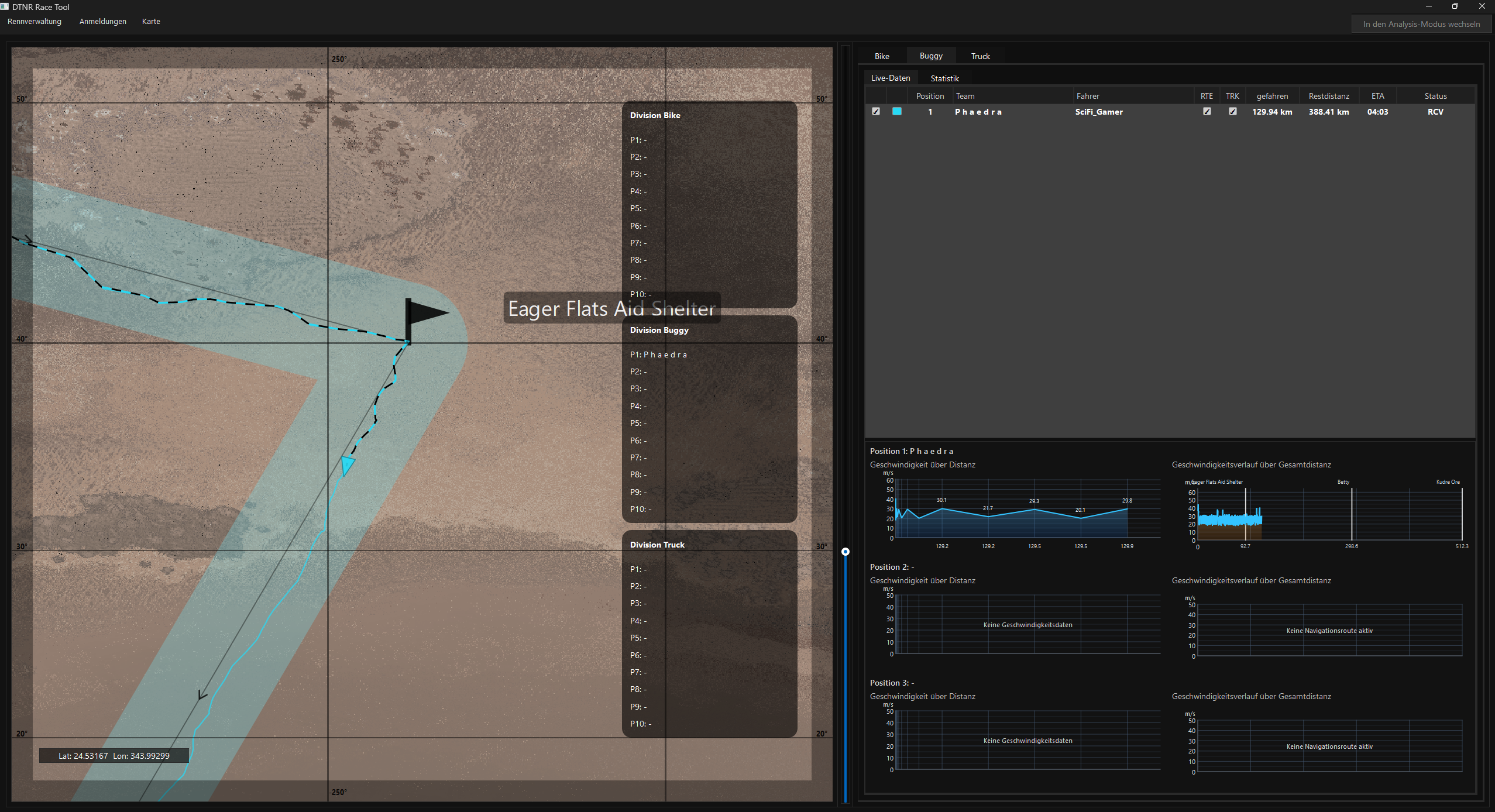
Auf der Live-Karte werden alle in der Teamliste eingeblendeten Teams (Spalte ✓) dargestellt:
- Richtungsmarker an der aktuellen Position in der gewählten Teamfarbe
- Spur – die bisher gefahrene Strecke als gestrichelte Linie (Spalte TRK)
- Route – die vom Team freigegebene Navigationsroute (Spalte RTE)
Divisions-Ranglisten
Am rechten Kartenrand blendet das Race Tool für jede Division (Bike, Buggy, Truck) eine Rangliste mit den Plätzen P1–P10 ein. Sie wird bei jedem Positionsupdate aktualisiert und eignet sich für Livestreams und Bildschirmübertragungen.
Karte bedienen
| Aktion | Bedienung |
|---|---|
| Karte verschieben | Linke Maustaste gedrückt halten und ziehen |
| Zoomen | Mausrad drehen oder Schieberegler verwenden |
| Teams ein-/ausblenden | Schalter in der Teamliste (✓, RTE, TRK) |
Darstellungsoptionen
- Karte → Daymar Primary / Daymar Secondary – Kartenebene wählen
- Karte → Offizielle Route darstellen – Strecke ein-/ausblenden
- Karte → Darstellung Tag/Nacht – Terminator und Nacht-Overlay konfigurieren
- Karte → Kartenraster anzeigen – Koordinatenraster einblenden
9 Live Map
Team Positions
All teams enabled in the team list (✓ column) are displayed on the live map:
- Heading marker at the current position in the chosen team colour
- Trail – the distance driven so far as a dashed line (TRK column)
- Route – the navigation route shared by the team (RTE column)
Division Rankings
At the right edge of the map the Race Tool shows a ranking with places P1–P10 for each division (Bike, Buggy, Truck). It updates with every position update and is well suited for live streams and screen sharing.
Map Controls
| Action | Control |
|---|---|
| Pan map | Hold left mouse button and drag |
| Zoom | Scroll mouse wheel or use the slider |
| Show/hide teams | Switches in the team list (✓, RTE, TRK) |
Display Options
- Map → Daymar Primary / Daymar Secondary – Choose the map layer
- Map → Show Official Route – Toggle the race route
- Map → Day/Night Display – Configure terminator and night overlay
- Map → Show Grid – Toggle coordinate grid
10 Rennstart und Countdown
Rennen eröffnen
Nach dem Erstellen eines Rennens muss es über Rennverwaltung → Rennen eröffnen eröffnet werden. Erst dann können sich Teams anmelden und beitreten.
Rennstart auslösen
- Wählen Sie Rennverwaltung → Rennen starten
- Im Start-Dialog erscheint ein großer Start-Button
- Klicken Sie auf Start – ein Countdown beginnt (konfigurierbare Dauer, Standard: 1 Minute)
- Der Countdown wird an alle verbundenen Nav Tools gesendet und dort groß angezeigt
- Nach Ablauf des Countdowns startet das Rennen automatisch
10 Race Start and Countdown
Opening a Race
After creating a race you must open it via Race Management → Open Race before teams can register and join.
Triggering the Start
- Select Race Management → Start Race
- A large Start button appears in the start dialog
- Click Start – a countdown begins (configurable duration, default: 1 minute)
- The countdown is sent to all connected Nav Tools and displayed prominently
- The race starts automatically when the countdown reaches zero
11 Standings und Ergebnisse
Standings (Live-Daten)
Während des Rennens zeigt die Standings-Tabelle im jeweiligen Divisions-Tab:
| Spalte | Bedeutung |
|---|---|
| ✓ / Farbe | Kartenanzeige und Teamfarbe (siehe Spalten der Teamliste) |
| Position | Aktuelle Platzierung |
| Team | Teamname |
| Fahrer | RSI Handle des Fahrers |
| RTE / TRK | Freigegebene Route bzw. gefahrene Spur auf der Karte anzeigen |
| gefahren | Zurückgelegte Distanz |
| Restdistanz | Verbleibende Strecke bis zum Ziel |
| ETA | Geschätzte Ankunftszeit |
| Status | Aktueller Team-Status (Racing, Finished, DNF, …) |
Unterhalb der Standings werden für die Top 3 automatisch Geschwindigkeitsdiagramme (in km/h) angezeigt:
- Geschwindigkeit über Distanz – Tempo entlang der zurückgelegten Strecke
- Geschwindigkeitsverlauf über Gesamtdistanz – Tempo über die gesamte Routenstrecke
Die Kurven werden geglättet und erscheinen erst, wenn genügend Messpunkte vorliegen – so entstehen am Anfang keine Ausreißer.
Statistik-Tab
Der Unter-Tab Statistik zeigt eine erweiterte Top-10-Tabelle mit zusätzlichen Kennzahlen:
- Restdistanz / ETA – Verbleibende Strecke und geschätzte Ankunft
- AVG – Durchschnittsgeschwindigkeit
- Pace – Aktuelles Tempo
- T1–T4 – Teilzeiten (Splits)
- Trend – Tendenz (schneller/langsamer werdend)
11 Standings and Results
Standings (Live Data)
During the race the standings table in each division tab shows:
| Column | Meaning |
|---|---|
| ✓ / Colour | Map display and team colour (see Team List Columns) |
| Position | Current ranking |
| Team | Team name |
| Driver | RSI handle of the driver |
| RTE / TRK | Show shared route or driven trail on the map |
| Driven | Distance covered |
| Remaining | Remaining distance to the finish |
| ETA | Estimated time of arrival |
| Status | Current team status (Racing, Finished, DNF, …) |
Below the standings, speed charts (in km/h) are displayed automatically for the top 3:
- Speed over Distance – Pace along the distance covered
- Speed Profile over Total Distance – Pace over the full route distance
The curves are smoothed and only appear once enough data points are available – this avoids outliers at the start.
Statistics Tab
The Statistics sub-tab shows an extended top-10 table with additional metrics:
- Remaining / ETA – Remaining distance and estimated arrival
- AVG – Average speed
- Pace – Current pace
- T1–T4 – Split times
- Trend – Tendency (speeding up / slowing down)
12 Race-Log
Das Race Tool protokolliert alle Rennvorfälle in chronologischer Reihenfolge. Die Log-Ausgaben erscheinen in der Statusleiste und werden in die Log-Datei geschrieben.
Typische Einträge:
- Team-Events – Anmeldung, Bestätigung, Beitritt
- Rennen – Phasenwechsel, Countdown, Start, Ende
- System – Verbindungsaufbau, -abbruch, Positionsupdates
Protokoll-Dateien liegen unter %LOCALAPPDATA%/DTNR-Tool/logs/.
12 Race Log
The Race Tool records all race events in chronological order. Log entries appear in the status bar and are written to the log file.
Typical entries:
- Team events – Registration, approval, joining
- Race – Phase changes, countdown, start, finish
- System – Connection established, disconnected, position updates
Log files are located at %LOCALAPPDATA%/DTNR-Tool/logs/.
13 Analysis-Modus
Das Race Tool kann abgeschlossene Rennen nachträglich abspielen und analysieren.
Modus wechseln
Klicken Sie auf den Button In den Analysis-Modus wechseln in der oberen rechten Ecke des Fensters. Mit In den Live Modus wechseln kehren Sie zurück.
Rennen laden und verwalten
Im Analysis-Modus öffnet Datei → Verwaltung einen Dialog mit zwei Listen:
- Server – Archivierte Rennen auf dem Race-Server (erfordert eine aktive Verbindung)
- Lokal – .race-Dateien im Standardordner für Race Files
Jede Liste zeigt Rennen, Anzahl der Snapshots, Dauer und Dateigröße. Markieren Sie ein Rennen und klicken Sie auf Laden (oder Doppelklick). Mit Löschen entfernen Sie ein Rennen nach Rückfrage, Aktualisieren lädt die Listen neu.
Über Datei → Rennen speichern sichern Sie ein geladenes Rennen als lokale .race-Datei.
Replay-Steuerung
Nach dem Laden erscheint eine Replay-Leiste am unteren Fensterrand:
- Slider – Zeitposition im Rennverlauf frei wählen
- Play / Pause – Wiedergabe starten und anhalten
- Geschwindigkeit – 0,5×, 1×, 2× oder 4× Wiedergabe
- Frame-Info – Anzeige des aktuellen Zeitpunkts
Die Karte und die Standings aktualisieren sich synchron zur Wiedergabeposition.
Wiederherstellung nach einem Neustart
Wird das Race Tool während eines eröffneten oder laufenden Rennens beendet (z. B. durch einen Absturz), erkennt es das Rennen beim nächsten Verbinden mit dem Server und fragt im Dialog Rennen wiederherstellen, ob es fortgesetzt werden soll. Bei Ja werden Rennkontext und bisherige Spuren wiederhergestellt.
13 Analysis Mode
The Race Tool can replay and analyse completed races.
Switching Modes
Click the Switch to Analysis Mode button in the upper right corner of the window. Use Switch to Live Mode to return.
Loading and Managing Races
In Analysis Mode, File → Management opens a dialog with two lists:
- Server – Archived races on the race server (requires an active connection)
- Local – .race files in the default race files folder
Each list shows race, number of snapshots, duration and file size. Select a race and click Load (or double-click). Delete removes a race after confirmation, Refresh reloads the lists.
Use File → Save Race to save a loaded race as a local .race file.
Replay Controls
After loading, a replay bar appears at the bottom of the window:
- Slider – Freely choose the time position in the race
- Play / Pause – Start and pause playback
- Speed – 0.5×, 1×, 2× or 4× playback
- Frame info – Display of the current point in time
The map and standings update in sync with the playback position.
Recovery After a Restart
If the Race Tool is closed while a race is open or running (e.g. after a crash), it detects the race the next time it connects to the server and asks in the Restore Race dialog whether to continue. Answering Yes restores the race context and the trails recorded so far.
 KONFIGURATIONCONFIGURATION
14 Einstellungen
Über das Menü Einstellungen können folgende Optionen konfiguriert werden:
Karteneinstellungen
Kartenebene, Raster, offizielle Route und Tag/Nacht-Darstellung stellen Sie im Menü Karte ein (siehe Abschnitt Live-Karte).
Standardordner
Einstellungen → Standardordner für Race Files definieren (im Analysis-Modus) legt fest, wo .race-Dateien gespeichert und gesucht werden.
Sprache
Über Sprache → Sprache wählen Sie zwischen Deutsch und English. Die Auswahl wird gespeichert und ist nach einem Neustart des Race Tools vollständig wirksam.
14 Settings
The following options can be configured via the Settings menu:
Map Settings
Map layer, grid, official route and day/night display are set in the Map menu (see section Live Map).
Default Folder
Settings → Set Default Race Files Folder (in Analysis Mode) defines where .race files are saved and searched.
Language
Under Language → Language you choose between English and Deutsch. The selection is saved and takes full effect after restarting the Race Tool.
15 Dateiformate
Renndatei (.race)
JSON-Datei mit der vollständigen Rennkonfiguration:
- name – Name des Rennens
- date / time – Datum und Uhrzeit
- divisions – Aktivierte Divisionen (Bike, Buggy, Truck)
- route – Eingebettete Rennstrecke
- teams – Liste aller registrierten Teams mit Status
- phase – Aktuelle Rennphase
- snapshots – Aufgezeichnete Positionsdaten für Replay
Route (.route)
Identisch zum Nav Tool – JSON mit Wegpunkten.
Race-Log (.log)
Textdatei mit Zeitstempel-Einträgen aller Rennvorfälle. Wird automatisch erstellt und fortlaufend aktualisiert.
15 File Formats
Race File (.race)
JSON file containing the complete race configuration:
- name – Race name
- date / time – Date and time
- divisions – Enabled divisions (Bike, Buggy, Truck)
- route – Embedded race route
- teams – List of all registered teams with status
- phase – Current race phase
- snapshots – Recorded position data for replay
Route (.route)
Identical to the Nav Tool – JSON with waypoints.
Race Log (.log)
Text file with timestamped entries of all race events. Created automatically and updated continuously.
16 Rennen – Best Practices
Vor dem Rennen
- Rennstrecke vorher im Nav Tool abfahren und prüfen
- Testrennen mit 2–3 Teams durchführen, um die Verbindung zu validieren
- Alle Teilnehmer sollten die aktuelle Version des Nav Tools verwenden
Während des Rennens
- Standings und Karte im Blick behalten
- Rennparameter (Update-Intervall) bei Bedarf anpassen
- Race-Log für spätere Auswertung laufend im Blick behalten
Nach dem Rennen
- Race-Datei wird automatisch archiviert
- Im Analysis-Modus das Rennen erneut abspielen und analysieren
- Ergebnisse mit den Teilnehmern teilen
16 Racing – Best Practices
Before the Race
- Drive the course in the Nav Tool first and verify it
- Run a test race with 2–3 teams to validate the connection
- All participants should use the latest version of the Nav Tool
During the Race
- Keep an eye on standings and the map
- Adjust race parameters (update interval) as needed
- Monitor the race log for later analysis
After the Race
- The race file is archived automatically
- Replay and analyse the race in Analysis Mode
- Share the results with participants
17 Fehlerbehebung
| Problem | Mögliche Lösung |
|---|---|
| Team erscheint nicht auf der Karte | Prüfen Sie, ob der Transponder im Nav Tool des Teams aktiviert ist und ob eine Serververbindung besteht. |
| Verbindung zum Server schlägt fehl | Server-Adresse in der config.json prüfen. Firewall-Einstellungen kontrollieren. |
| Rennen lässt sich nicht starten | Das Rennen muss in der Open-Phase sein. Mindestens ein Team muss beigetreten sein. |
| Standings werden nicht aktualisiert | Prüfen Sie, ob das Rennen in der Started-Phase ist (nicht Created oder Finished). |
| Analysis-Modus zeigt keine Daten | Stellen Sie sicher, dass eine gültige .race-Datei mit Snapshot-Daten geladen wurde. |
| Analysis-Modus lässt sich nicht öffnen | Während ein Rennen eröffnet ist oder läuft, ist der Analysis-Modus gesperrt. Rennen zuerst beenden. |
| Oberfläche ist gesperrt | Keine gültige Lizenz. Über Lizenz → Anmelden / Lizenz… anmelden und Lizenz anfordern bzw. aktivieren. |
| Anmeldung schlägt fehl | E-Mail und Passwort prüfen. Das DTNR-Konto muss per Bestätigungs-E-Mail aktiviert sein. |
| Hinweis „Offline-Modus“ | Der Lizenzserver war nicht erreichbar. Innerhalb von 48 h erneut mit Internetverbindung starten. |
Protokolldateien finden Sie unter %LOCALAPPDATA%/DTNR-Tool/logs/.
17 Troubleshooting
| Problem | Possible Solution |
|---|---|
| Team does not appear on the map | Check that the transponder is enabled in the team’s Nav Tool and that a server connection exists. |
| Connection to server fails | Verify the server address in config.json. Check firewall settings. |
| Race cannot be started | The race must be in the Open phase. At least one team must have joined. |
| Standings are not updating | Check that the race is in the Started phase (not Created or Finished). |
| Analysis Mode shows no data | Make sure a valid .race file with snapshot data has been loaded. |
| Analysis Mode cannot be opened | Analysis Mode is locked while a race is open or running. End the race first. |
| User interface is locked | No valid license. Sign in via License → Login / License… and request or activate a license. |
| Sign-in fails | Check e-mail and password. The DTNR account must be activated via the confirmation e-mail. |
| “Offline mode” notice | The license server was not reachable. Start again with an internet connection within 48 h. |
Log files are located at %LOCALAPPDATA%/DTNR-Tool/logs/.